
USB-A Cable: One Plug, Four Versions
Quick answer / TL;DR: Short answer: specify the version and the far-end connector – A-to-B for printers, A-to-micro-B for older devices, A-to-C for modern ones. Buy data-rated cables if synchronisation matters, and check the printed rate rather than the plug. A USB 2.0 cable on a 3.0 port negotiates down to 480 Mbps.
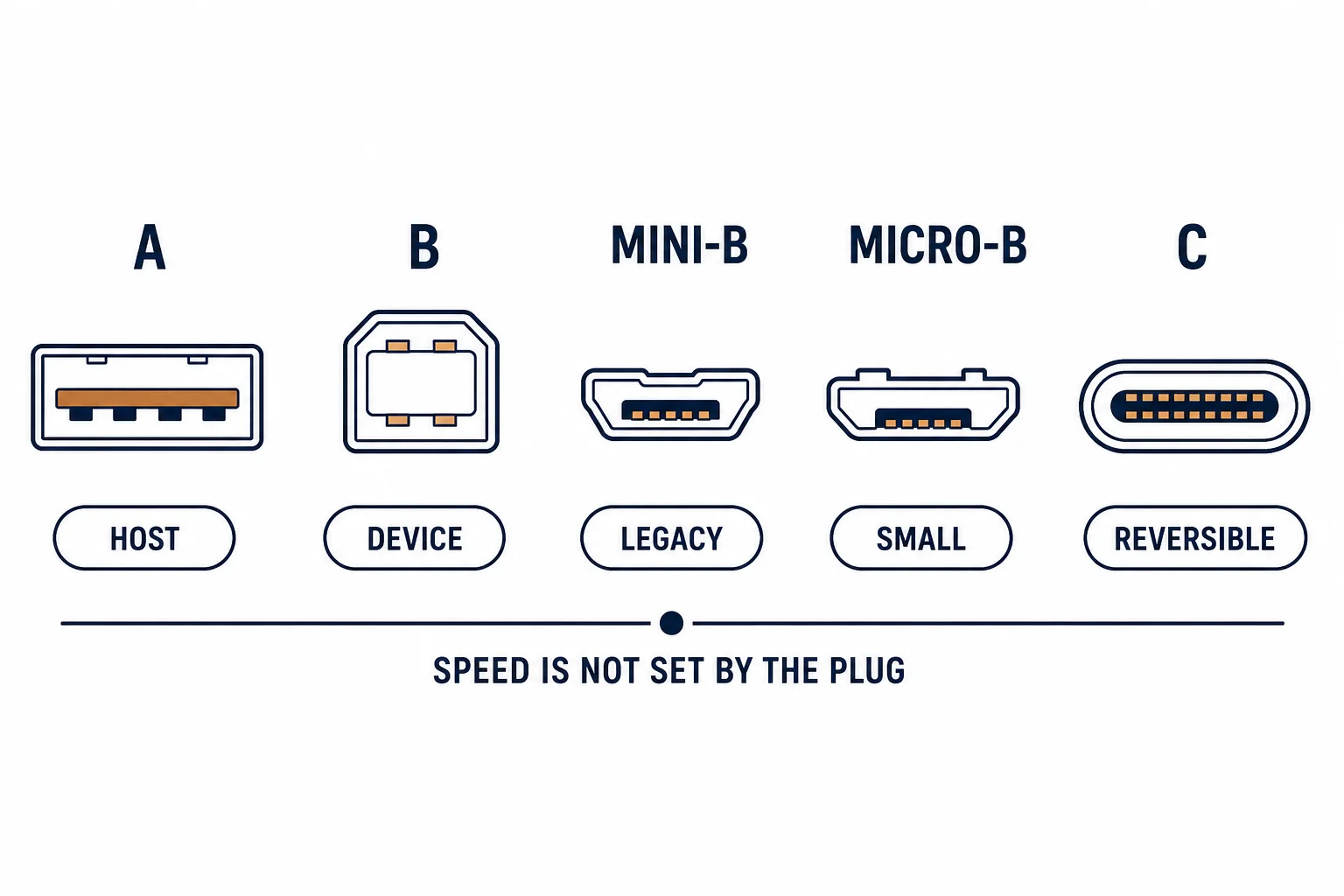
The USB-A plug has not changed shape since 1996, yet the cables carrying it range from 1.5 Mbps to 10 Gbps. That is why buying 'a USB-A cable' without a version is a lottery: the connector guarantees compatibility, not performance.
This is the USB-A cable guide: the versions behind the plug, the charge-only variant, and the checks that match a cable to a port.
The Versions Behind One Plug
| The version | The rate | The typical use |
|---|---|---|
| USB 1.1 | 1.5-12 Mbps | Legacy peripherals |
| USB 2.0 | 480 Mbps | Keyboards, printers |
| USB 3.0 | 5 Gbps | Drives, docks |
| USB 3.1/3.2 | 10-20 Gbps | Fast storage |
The plug is identical across all four, which is exactly why the printed rating matters more than the picture.
The Far-End Connector
- A-to-B: printers, scanners, audio interfaces
- A-to-micro-B: older phones, cameras, small devices
- A-to-C: modern phones, laptops, accessories
- A-to-A: rare, usually a mistake
The far end defines the device class, and buying the wrong one is a physical mismatch rather than a performance issue.
The Charge-Only Trap
| The cable | The wiring | The symptom |
|---|---|---|
| Data cable | Power plus data pairs | Works fully |
| Charge-only | Power only | Charges, never connects |
| Thin and cheap | Often charge-only | Unexplained device absence |
The trap is that both look identical; only testing reveals which one is in hand.
Standards and Verification
| The reference | The relevance |
|---|---|
| USB 2.0 / 3.2 | Rates and connectors |
| USB-IF | Cable compliance |
| Field test | Device recognised and rate checked |
Per-SKU cable ratings are not provided in the knowledge base. The version definitions are standard; check the printed rating and test data transfer.
Practical Notes
Label cables when they come out of the packaging: a marker on the plug with the version saves an hour of diagnosis a year later. The plugs are identical and the cables are not.
Real-World Applications
The printer
An office printer connected with an A-to-B cable: the version matched to the device, the cable labelled – a later fault traced without guesswork.
The slow drive
An external drive transferring slowly on an A-to-micro-B 3.0 cable: the cable was 2.0. A rated 3.0 cable fitted – the port had been fine.
The charge-only surprise
A device that charged but never appeared in the file manager: a charge-only cable in the drawer. A data cable substituted – no driver work needed.
Related reading: The A-to-C transition lead — blogs/news/usb-a-to-usb-c-cable
Related reading: The device-end Type-B — blogs/news/usb-b-cable
Frequently Asked Questions
Are all USB-A cables the same speed?
No – they range from 1.1 to 3.2 depending on the cable.
What is a charge-only cable?
One without the data pairs; it charges but never connects.
Which far-end connector do I need?
B for printers, micro-B for older devices, C for modern ones.
How do I check a cable's version?
Read the printed rating; otherwise test the negotiated rate.
Sourcing cables for a project, a store, or a private-label line? Contact our B2B sales team for specifications, certification evidence, and volume terms – FOB and CIF options available. Request a quote or sample.