
TV Ethernet Cable: Wiring the Smart TV
Quick answer / TL;DR: Short answer: connect a Cat5e or Cat6 patch cable from the TV's LAN port to a router LAN port (not the WAN port), then in the TV's network settings select wired and confirm the link. Use the shortest practical cable, avoid running it parallel to mains, and verify in the TV's network status that the wired connection is active.
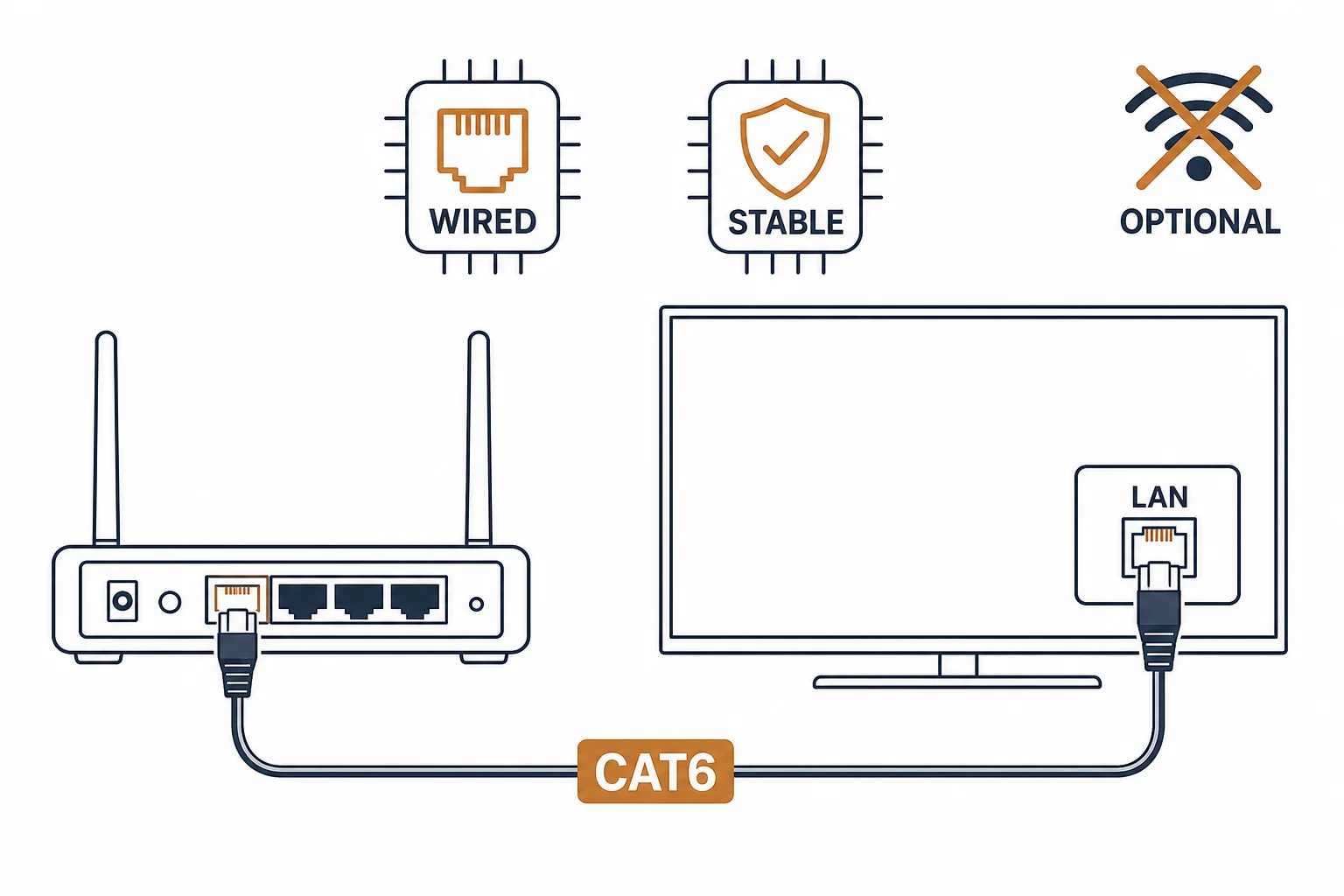
A smart TV on Wi-Fi is the most common source of 4K stutter in a home, and the fix is a cable and a setting. The cable is ordinary; the setting is the part people miss – many TVs keep using Wi-Fi unless the wired connection is confirmed or Wi-Fi is disabled.
This is the TV wiring guide: the port, the setting, the length, and the checks that confirm the TV is actually using the wire.
The Port and the Cable
| The element | The check |
|---|---|
| TV port | LAN or Ethernet – not the service port |
| Router port | A LAN port, not WAN |
| Cable | Cat5e or Cat6 patch, shortest practical |
| Rating | Any category meets streaming needs |
The port distinction matters: the WAN port is for the internet feed, and a TV plugged there will not reach the local network.
The Setting People Miss
- Network type: choose wired, or let the TV auto-select and confirm it did
- Wi-Fi: disable it if the TV prefers wireless when both exist
- IP: leave DHCP on unless the network requires a static address
- Confirmation: read the TV's status screen – wired, link rate, IP address
The setting is the difference between a cable that is plugged in and a TV that is using it.
Routing the Cable
| The situation | The practice |
|---|---|
| Wall to TV | Cable clips or a channel, not pinched behind the TV |
| Along mains | Keep separation; cross at right angles |
| Under carpet | Flat cable, rated for the traffic |
| Long run | Stay within 100 m, and prefer a switch over a single long cable |
Standards and Verification
| The reference | The relevance |
|---|---|
| IEEE 802.3ab | Gigabit over twisted pair |
| TIA-568.2-D | Cable and installation practice |
| TV network settings | The per-model menu the status lives in |
Per-model TV menu names are not provided in the knowledge base. The port and setting logic is standard; confirm the specific menu in the TV's manual.
Real-World Applications
The 4K stutter fix
A 4K TV buffering on Wi-Fi at peak hours: a Cat6 patch to the router, wired selected – the buffer steady, the Wi-Fi retired for video.
The WAN port mistake
A TV plugged into the router's WAN port: no streaming apps, no local access. Moved to a LAN port – the network reached.
The pinched cable
A cable routed behind a wall-mounted TV bracket: the jacket crushed, the link intermittent. Re-routed through a channel – the fault gone.
Related reading: The streaming stability argument? Read the streaming guide — blogs/news/ethernet-cable-for-streaming
Related reading: The flat cable option for awkward routes? Read flat versus round — blogs/news/flat-vs-round-ethernet
Frequently Asked Questions
What cable does a smart TV need?
Any Cat5e or Cat6 patch cable – streaming needs tens of megabits, and both categories exceed it.
Why is my TV still on Wi-Fi after plugging in a cable?
The TV's network setting still prefers wireless. Select wired and disable Wi-Fi if necessary.
Can I use a long ethernet cable for a TV?
Within 100 m, yes. For longer distances use a switch or fiber rather than a single over-length cable.
Does a wired TV connection improve picture quality?
It improves stability and reduces buffering. Picture quality is set by the stream and the display, not the cable.
Sourcing cables for a project, a store, or a private-label line? Contact our B2B sales team for specifications, certification evidence, and volume terms – FOB and CIF options available. Request a quote or sample.