
MacBook HDMI: The Port Reality
Quick answer / TL;DR: Short answer: check the port first. USB-C-only MacBooks need a USB-C to HDMI adapter or cable with DisplayPort Alt Mode support; older models with Mini DisplayPort need a Mini DisplayPort to HDMI adapter; recent models with a built-in HDMI port need only a cable rated for the mode you want. Match the cable rating to the resolution and refresh.
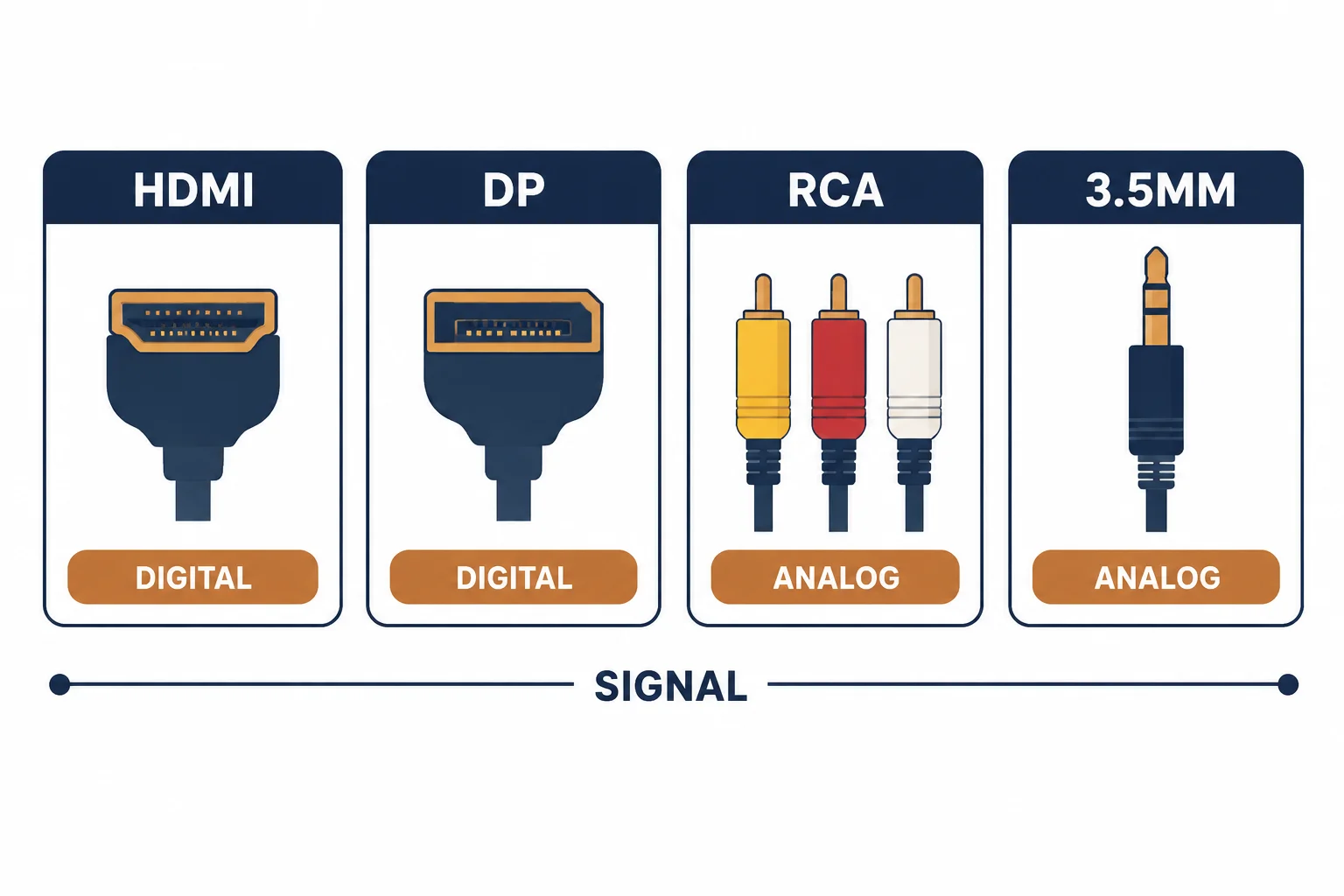
MacBook connectivity changed twice in a decade: MagSafe and Mini DisplayPort, then USB-C only, then HDMI returning on some models. Which cable is needed therefore depends entirely on the machine, and the wrong purchase is common.
This is the MacBook HDMI guide: the port by generation, the adapter or cable that matches it, and the resolution and refresh each path supports.
The Port by Generation
| The port | The era | The cable |
|---|---|---|
| Mini DisplayPort | Older MacBooks | Mini DP to HDMI adapter |
| USB-C (Thunderbolt) | 2016 onwards | USB-C to HDMI adapter or cable |
| Built-in HDMI | Recent models | A rated HDMI cable |
The pattern is adapter for older machines, cable for newer ones – and the two are not interchangeable.
What Each Path Supports
- USB-C with DP Alt Mode: 4K at 60 Hz typical, higher with HBR3
- Mini DisplayPort: 4K at 30 or 60 Hz depending on generation
- Built-in HDMI: depends on the machine's HDMI version
- Multiple displays: check the model's limit, not the adapter's claim
The machine's own limit is the ceiling; an adapter cannot exceed it, whatever its packaging says.
The Adapter or the Cable
| The situation | The answer |
|---|---|
| USB-C laptop, fixed desk | A single USB-C to HDMI cable |
| USB-C laptop, travel | A compact adapter plus a standard cable |
| Mini DP laptop | Mini DP to HDMI adapter |
| Built-in HDMI | A cable rated for the mode |
Cables are tidier and adapters are more flexible; both work if the rating matches.
Standards and Verification
| The reference | The relevance |
|---|---|
| VESA DisplayPort | Alt mode and link rates |
| HDMI specification | Cable categories |
| HDCP | Content protection for protected playback |
Per-model port capabilities are not provided in the knowledge base. The interfaces are standard; confirm the machine's specification before buying.
Practical Notes
The most common disappointment is a USB-C hub that passes video at a lower resolution than the laptop can produce. A direct cable to the display usually resolves it, because a hub shares its link across every port.
Real-World Applications
The studio desk
A USB-C MacBook driving a 4K monitor: one USB-C to HDMI cable, rated for the mode – 4K at 60 Hz with no hub in the path.
The hub limit
A hub that produced 4K at 30 Hz: its video output was limited, not the laptop's. A direct cable used – the full mode returned.
The older machine
A 2013 MacBook with Mini DisplayPort: a Mini DP to HDMI adapter, resolution confirmed at the display – the port generation decided the purchase.
Related reading: The micro HDMI counterpart — blogs/news/micro-hdmi-cable
Related reading: USB-C to DisplayPort instead — blogs/news/usb-c-to-displayport-cable
Frequently Asked Questions
What cable connects a MacBook to HDMI?
USB-C to HDMI for 2016-and-later models; Mini DisplayPort to HDMI for older ones.
Do I need a special adapter?
It must support DisplayPort Alt Mode; charging-only USB-C ports will not output video.
Why only 30 Hz?
Either the adapter, the hub or the cable is limited – or the display's input setting.
Can I use a hub?
Yes, but hubs share bandwidth and may cap resolution or refresh.
Sourcing cables for a project, a store, or a private-label line? Contact our B2B sales team for specifications, certification evidence, and volume terms – FOB and CIF options available. Request a quote or sample.