
Thunderbolt to DisplayPort
Quick answer / TL;DR: Short answer: a USB-C to DisplayPort cable works on Thunderbolt 3 and 4 ports because DisplayPort is carried natively. Check the generation for the maximum resolution and refresh, use a certified cable, and remember that daisy-chaining requires monitors with DisplayPort output – and that each link consumes bandwidth.
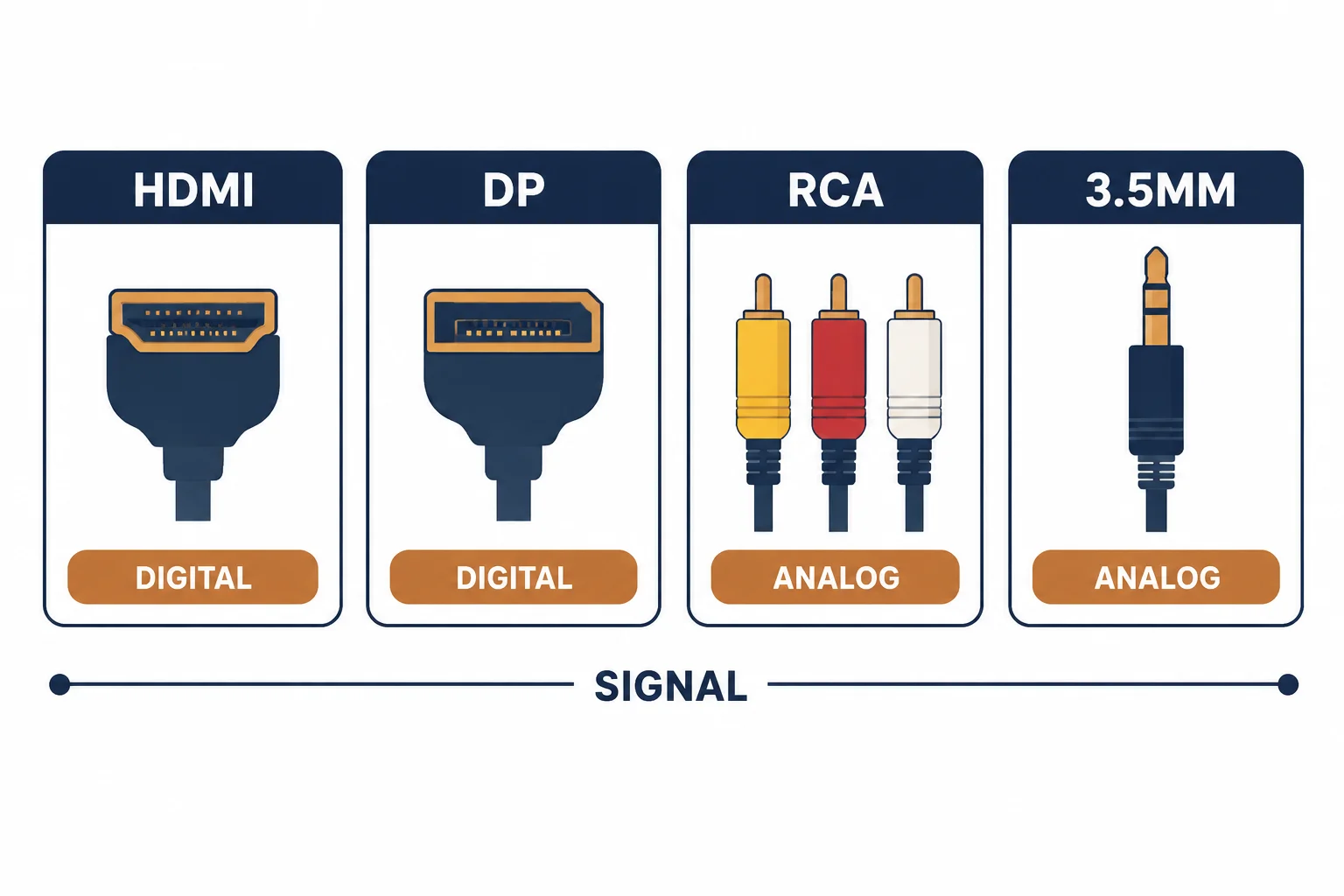
Thunderbolt carries DisplayPort as one of its protocols, which is why a Thunderbolt port can drive a DisplayPort monitor through a simple cable or adapter. The nuance is generation and lane count: what a Thunderbolt 3 port supports differs from Thunderbolt 4, and daisy-chaining depends on both.
This is the Thunderbolt-to-DisplayPort guide: the passthrough mechanics, the generation differences, and the daisy-chain rules that decide how many displays one port can drive.
The Passthrough
| The host | The protocol | The result |
|---|---|---|
| Thunderbolt 3 | DisplayPort 1.2/1.4 | Native output |
| Thunderbolt 4 | DisplayPort 1.4 | Native, more guarantees |
| USB-C without TB | Alt mode only | Depends on the port |
Thunderbolt's advantage is that the display protocol is native, not tunnelled through a converter.
Generation Differences
- Thunderbolt 3: one 4K 60 Hz display reliably, more with some hosts
- Thunderbolt 4: guarantees support for two 4K displays
- Lane allocation: shared with data devices on the same port
- Cable certification: matters at high modes
The generation sets the guarantee; the actual host implementation can exceed or miss it.
Daisy Chaining
| The requirement | The detail |
|---|---|
| Monitors | Must have DisplayPort output |
| Order | Host to first, first to second |
| Bandwidth | Shared across the chain |
| Limit | Two to three displays typically |
Daisy chaining is a bandwidth negotiation, not a port count: each monitor takes what it needs from the same link.
Standards and Verification
| The reference | The relevance |
|---|---|
| Thunderbolt 3 / 4 | Protocol and display guarantees |
| VESA DisplayPort | Link rates and MST |
| HDCP | Protected content |
| Field test | Display reporting mode and refresh |
Per-host display limits are not provided in the knowledge base. Check the machine's specification; the protocol support is standard but the implementation varies.
Practical Notes
The most common mistake is expecting a Thunderbolt dock to drive more displays than its specification allows. Docks share one host link across every port, so the display count is a dock specification, not a cable question.
Real-World Applications
The dual display desk
A Thunderbolt 4 laptop driving two 4K displays: one direct cable and one through a certified dock – the port's guarantee respected.
The daisy chain
Two monitors chained from one port: the second limited to 4K 30 Hz by the shared bandwidth. One moved to a second port – the chain re-planned.
The non-Thunderbolt port
A laptop with USB-C but no Thunderbolt: the cable worked only because the port supported DisplayPort alt mode. The specification, not the connector shape, decided.
Related reading: The DisplayPort tier — blogs/news/displayport-1-4-cable
Related reading: Mini DisplayPort legacy — blogs/news/mini-displayport-cable
Frequently Asked Questions
Does Thunderbolt work with DisplayPort monitors?
Yes – DisplayPort is carried natively.
How many displays can I run?
Thunderbolt 4 guarantees two 4K; more depends on the host.
Can I daisy chain?
Only with monitors that have DisplayPort output, and within the shared bandwidth.
Do I need a special cable?
A certified USB-C to DisplayPort cable, rated for the mode.
Sourcing cables for a project, a store, or a private-label line? Contact our B2B sales team for specifications, certification evidence, and volume terms – FOB and CIF options available. Request a quote or sample.