
HDMI Cable for PC: GPU to Display
Quick answer / TL;DR: Short answer: for 4K at 60 Hz or 1440p at high refresh, a Premium High Speed (18 Gbps) cable is the minimum; for 4K at 120 Hz or 8K, Ultra High Speed (48 Gbps). Confirm the port version on both the GPU and the display, enable the display's high-bandwidth mode in its menu, and check that VRR is supported on both sides.
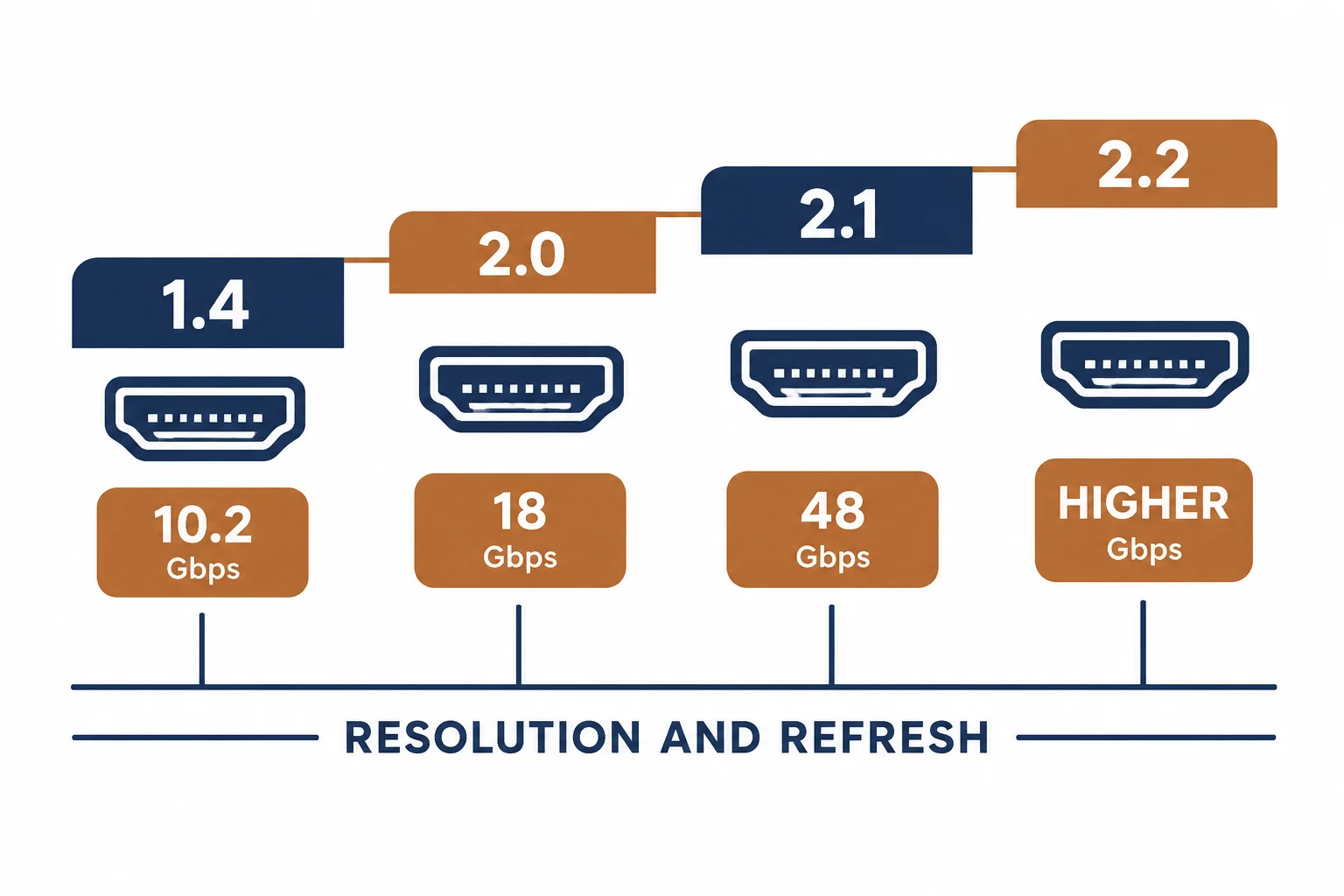
A PC is the most demanding HDMI source most people own: high refresh rates, variable refresh, HDR and non-standard resolutions all at once. The graphics card sets what is possible, the display sets what is accepted, and the cable decides whether the two agree.
This is the PC-specific guide: the modes to plan for, the cable rating that carries them, and the settings that quietly cap the result.
The Modes to Plan For
| The mode | The bandwidth | The cable |
|---|---|---|
| 1440p 144 Hz | About 12-14 Gbps | Premium High Speed |
| 4K 60 Hz | 18 Gbps | Premium High Speed |
| 4K 120 Hz | Over 30 Gbps | Ultra High Speed |
| 8K 60 Hz | 48 Gbps | Ultra High Speed |
Gaming modes sit at the top of the bandwidth range, which is why the cable is more often the limiting part on a PC than on a television.
What the GPU and Display Must Agree On
- Port version: HDMI 2.0 versus 2.1 determines the ceiling
- High-bandwidth mode: many displays ship with it disabled
- VRR: must be supported and enabled on both
- HDR: separate setting from the mode
The handshake decides the actual mode; a cable that is rated correctly can still be limited by a menu.
Diagnosing a Capped Mode
| The symptom | The check |
|---|---|
| Refresh stuck at 60 Hz | Display's high-bandwidth mode |
| VRR unavailable | Both ends and the cable |
| HDR greyed out | Port version and cable |
| Black screen at high refresh | Cable bandwidth |
The order matters: enable the display mode first, then test the cable, then consider the port.
Standards and Verification
| The reference | The relevance |
|---|---|
| HDMI 2.0 / 2.1 | Bandwidth and feature sets |
| VRR | Variable refresh implementations |
| HDMI certification | Premium and Ultra programmes |
Per-GPU capabilities are not provided in the knowledge base. Check the graphics card specification and the display manual; both must support the mode.
Practical Notes
DisplayPort is often the better choice on a PC: it supports higher refresh more readily and avoids HDMI's feature negotiation. Use HDMI where the display only offers it, or for home theatre integration.
Real-World Applications
The 144 Hz display
A 1440p 144 Hz monitor on a Premium High Speed cable: the mode appeared once the display's high-bandwidth setting was enabled – the cable had been adequate.
The capped 4K
A 4K 120 Hz display stuck at 60: the cable was 18 Gbps. An Ultra High Speed cable fitted – 120 Hz negotiated, and VRR became available.
The DisplayPort alternative
A gaming monitor offering both ports: DisplayPort used for 165 Hz, HDMI left for a console – each port serving what it does best.
Related reading: The version tiers — blogs/news/8k-hdmi-cable
Related reading: DisplayPort for PC — blogs/news/displayport-1-4-cable
Frequently Asked Questions
What HDMI cable for 4K 120 Hz?
Ultra High Speed, rated for 48 Gbps.
Why is my refresh stuck at 60 Hz?
Often the display's high-bandwidth mode is off, or the cable is below the required rating.
Do I need HDMI 2.1 for VRR?
VRR exists in earlier versions too, but support varies by device.
Is DisplayPort better for PC?
Often yes, for high refresh and simpler feature negotiation.
Sourcing cables for a project, a store, or a private-label line? Contact our B2B sales team for specifications, certification evidence, and volume terms – FOB and CIF options available. Request a quote or sample.