
USB-C to DisplayPort: Alt Mode Required
Quick answer / TL;DR: Short answer: confirm the USB-C port supports DisplayPort Alt Mode – many charging-only ports do not. Choose a cable rated for the resolution and refresh you need (4K at 60 Hz needs HBR3-class support), and remember the direction is fixed: USB-C source, DisplayPort display. For a DisplayPort source driving a USB-C monitor, a different cable is required.
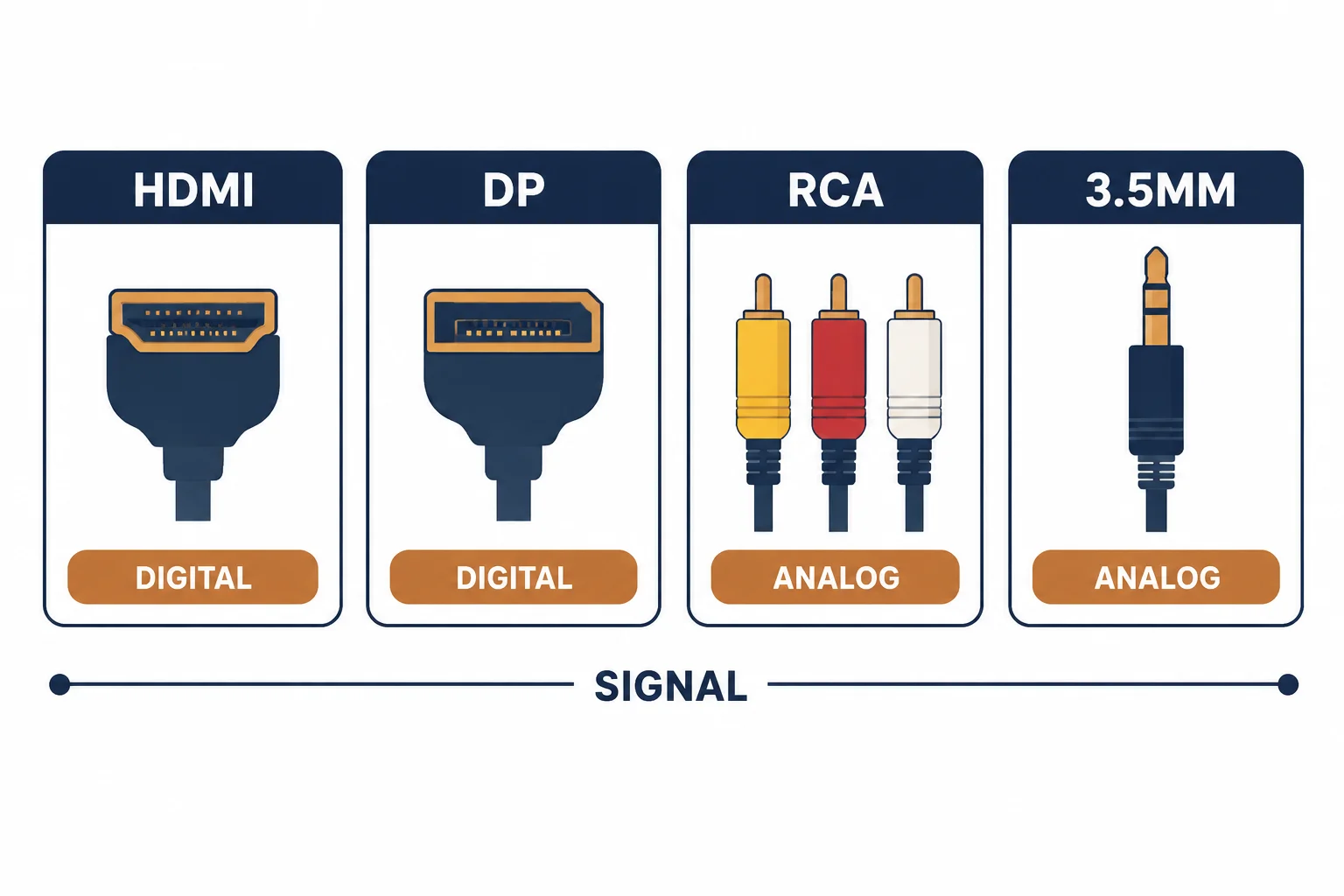
A USB-C to DisplayPort cable relies on DisplayPort Alt Mode: the USB-C port must be able to output a display signal, which not every port can. The cable is directional in the sense that the USB-C end is the source and the DisplayPort end is the display, and no adapter can reverse that.
This is the cable guide: the alt-mode requirement, the resolution and refresh it supports, and the checks that prevent buying a cable for a port that cannot drive it.
The Alt-Mode Requirement
| The port | Video output | The result |
|---|---|---|
| USB-C with DP alt mode | Yes | Works |
| USB-C charging only | No | No signal |
| USB-C with Thunderbolt | Yes | Works, often with more lanes |
| USB-A | No | Adapter cannot help |
The port capability decides, not the cable: a perfect cable cannot add alt mode to a charging port.
Resolution and Refresh
- 4K at 60 Hz: needs a cable and port supporting the required lane rate
- 4K at 30 Hz: easier, but visibly less smooth
- Dual displays: may need MST support or two ports
- HDR and high refresh: check the full chain
The cable rating and the port capability must both meet the requirement; the weaker one sets the result.
The Direction Rule
| The setup | The cable |
|---|---|
| Laptop USB-C to monitor DP | USB-C to DisplayPort |
| Desktop DP to USB-C monitor | DisplayPort to USB-C, if the monitor supports it |
| USB-C to USB-C display | A USB-C cable with DP alt mode |
Direction matters because the alt-mode negotiation happens at the source end.
Standards and Verification
| The reference | The relevance |
|---|---|
| VESA DisplayPort | Alt mode and link rates |
| USB-IF | USB-C and power delivery |
| HDCP | Content protection along the chain |
Per-device alt-mode support is not provided in the knowledge base. The standard is named in the device specification; check the port description rather than the shape of the connector.
Practical Notes
The most common disappointment is a laptop whose USB-C port is charging and data only. It is a specification issue that no cable solves, and it is worth checking before ordering rather than after.
Real-World Applications
The single-cable desk
A laptop driving a 4K monitor over USB-C to DisplayPort: one cable for video, with charging through a separate port – the desk reduced to two connections.
The charging-only port
A laptop with two USB-C ports, only one with alt mode: the cable in the wrong port gave no signal. Moved to the alt-mode port – the specification, not the cable, was the issue.
The reversed request
A desktop DisplayPort output to a USB-C monitor: a USB-C-to-DP cable would not work in that direction. The correct DP-to-USB-C cable ordered – the direction rule applied.
Related reading: DisplayPort cable supply — blogs/news/displayport-cable-suppliers
Related reading: When optical HDMI beats copper — blogs/news/aoc-vs-copper-hdmi
Frequently Asked Questions
Why does my USB-C to DisplayPort cable show no signal?
The USB-C port may not support DisplayPort alt mode.
Does it work in reverse?
Not with the same cable; direction is set by the alt-mode negotiation.
What resolution can it carry?
Up to 4K at 60 Hz and beyond, depending on the cable and port capability.
Do I need a special cable for HDR?
The full chain must support it – port, cable and display.
Sourcing cables for a project, a store, or a private-label line? Contact our B2B sales team for specifications, certification evidence, and volume terms – FOB and CIF options available. Request a quote or sample.